i - Opens 'About GroundWiz' window.
? - Shortcut to this help file.
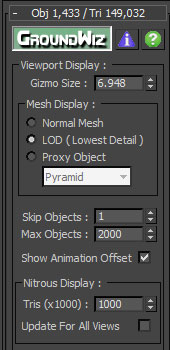
Viewport Display
Gizmo Size - Set the size of viewport gizmo for Planter. Each Planter is a standard object and gizmo is positioned at the Planter's center. To hide the gizmo, set size to 0.0.
Mesh Display - Pick how to show planted objects in viewport. This option was added to allow speed versus quality selection when working with Planter. Supported modes are:
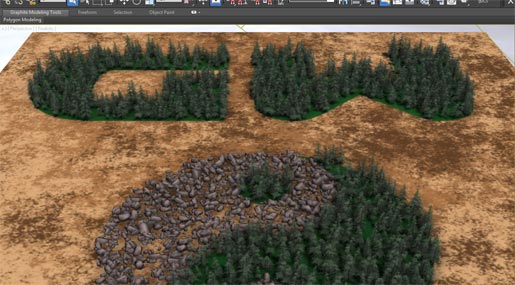
- Normal - Displays planted objects with mesh that will be used for rendering. If you set up LOD (level of detail) objects, they will be used just as they would when rendered. This way it is possible to interactively test LOD selection. This display mode is slowest.
- LOD - Displays the lowest LOD (level of detail) for each planted object. Since the lowest LOD is usually least complex, speed will probably be better than in Normal mode.
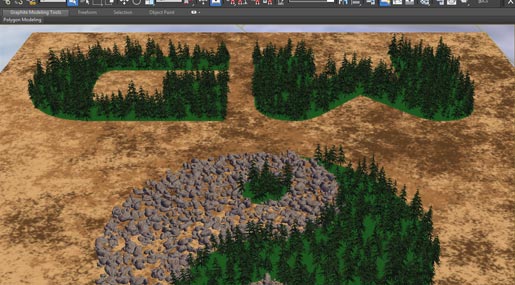
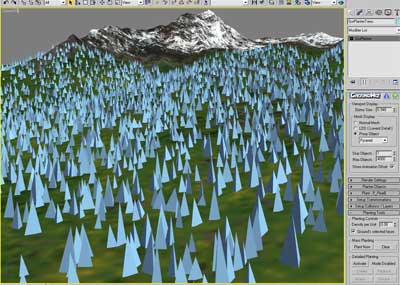
- Proxy - Use proxies to display planted objects in the viewport. You can pick between pyramid, box or cylinder proxy objects. Usually proxies offer the fastest viewport display. Since version 1.500, line gizmo and cross gizmo were added to proxy object. These gizmos should help when working on very complex and cluttered scenes.
Pyramid
Box
Cylinder
Line Gizmo
Cross Gizmo
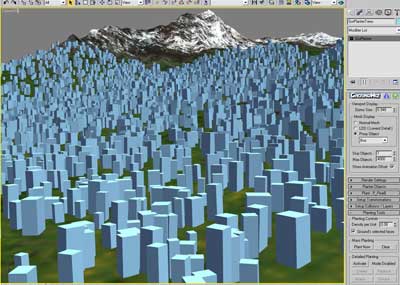

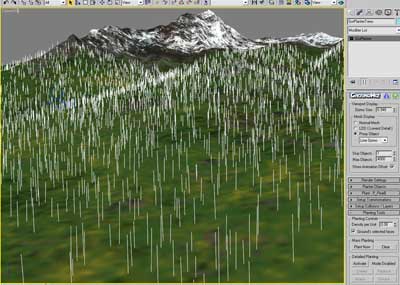
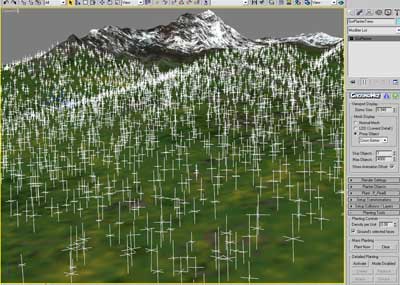
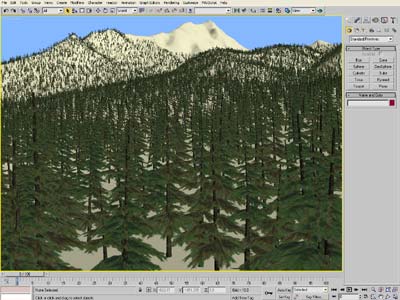
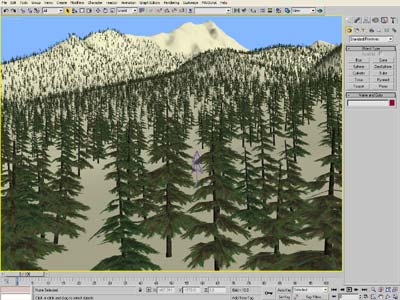
Skip Objects - This option allows you to adjust how to show plants in viewport. When the value is set to 0, all the plants are shown in viewport the way you planted them. In case there are many plants and you need to test coverage for big area, increase this value. Skip Object:1 will show ½ of objects, Skip Object:2 will show ¼, next one half of the previous, and so on.
The following pictures show 3 different viewport images with different 'Skip Objects' values.
Value 0
Value 1
Value 2
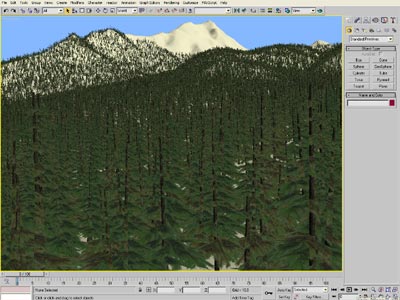
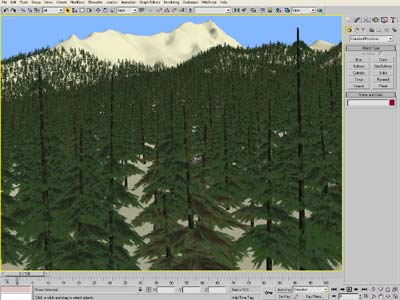
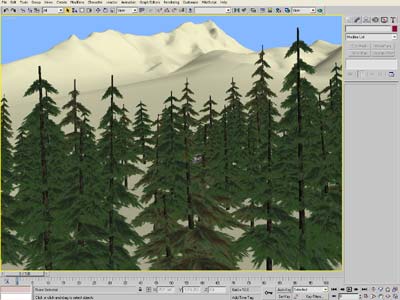
Max Objects - This option limits the maximum number of objects to show in viewport. The actual number of planted objects may be a lot bigger in the current view, but using this limit, you can work on a big scene faster and easier. Let's say that in the current view the actual number of plants is 50,000 but the limit is set to 4,000. In that case only the 4,000 closest objects will be shown.
No limit to the maximum number of objects
Maximum objects 100: hundred trees closest to the current view are displayed.
Show Animation Offset - Displays animation offset in viewports. Animation offset allows instanced objects to play the same animation but at random animation time (calculated from animation offset) so to create more natural non-synchronized movement. If animation offset is used, it slows down redraw of viewports a lot. Therefore, this is an easy way to turn off display of all animation offsets to greatly improve redraw speed. If none of the plants is using animation or 'Animation Offset' is set to 0 on all plants (default), then this option has no effect.
Nitrous Display (new since version 1.800) - These settings are available only when using 3ds Max 2012 with Nitrous viewport display. Nitrous requires viewport objects to be prepared in view independent way for better performance. Since Planter displays only instances that are close to the viewer, certain parameters are exposed to let users adjust Planter to their workflow.
Note that if Planter is using line proxies 'Line Gizmo' or 'Cross Gizmo' to display planted instances then the following settings have no effect on Planter display.
Tris (x1000) - Limits the maximum number of triangles that can be used to display current Planter in viewports. When displaying planted instances that have fewer triangles, more instances can be shown in viewport before this limit is reached (for example Proxy object Pyramid has only 3 triangles). Too many triangles drawn will slow down viewport redraw. Default value is 1000 (1 million triangles).
Update For All Views - Allows user to decide if Planter should be updated for current view only(faster) or for all views. Default is off therefore Planter is updated only to display correctly in the main active view. If this option is on and multiple views are used then Planter must prepare itself to be displayed in all views. This will be slower and the number of triangles displayed will greatly increase. The main view is always drawn first and therefore mostly likely to be correct. Other views will be drawn afterwards until the above triangle limit count is reached.
Nitrous viewport display
Direct3D viewport display